Set up the station and log in
On-site guideEquipment setup
- 1Place the manikin on a firm surface (the floor).
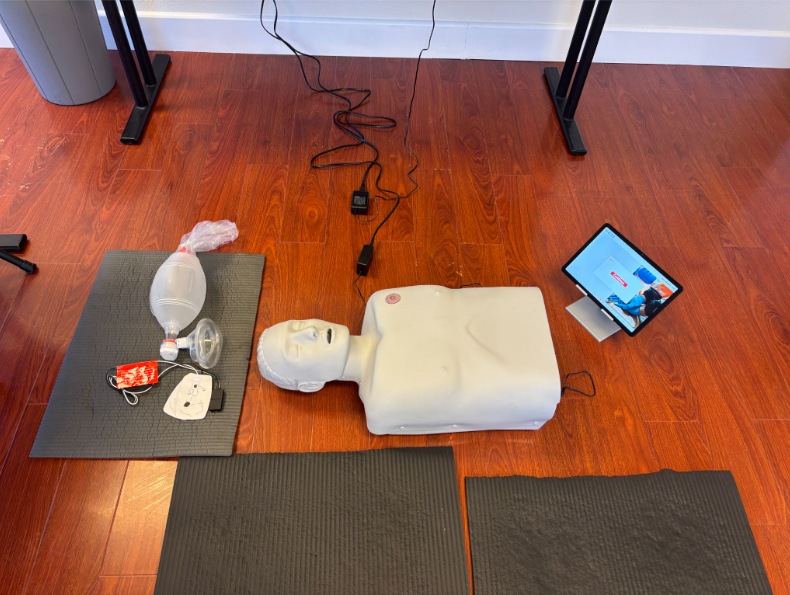
- 2Unplug the tablet charging cable and place the tablet on the floor.
- 3Prepare the AED pads. Please note that we only provide 1 set of AED for both adult and infant.For CPR / First Aid
- 4Prepare the pocket mask (CPR / First Aid) or BVM (BLS)
- 5Disinfect the manikin with wipes before use.
Login
- AFind and tap the Chrome icon on the Homescreen.
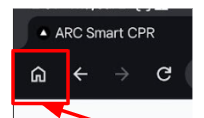
- BTap the Home button.
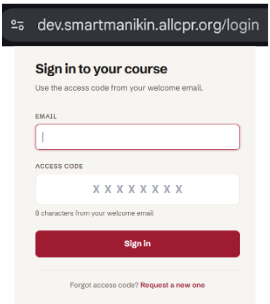
- CEnter your registered email and access code.If you don't see this page after clicking the Home button, please clear your browser cache and browsing history, then try again.
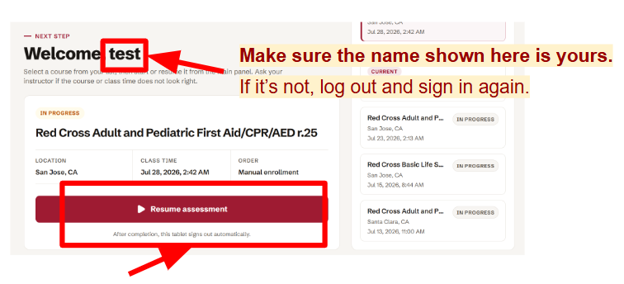
- DPress “Start Assessment”This page may take up to a minute to load.
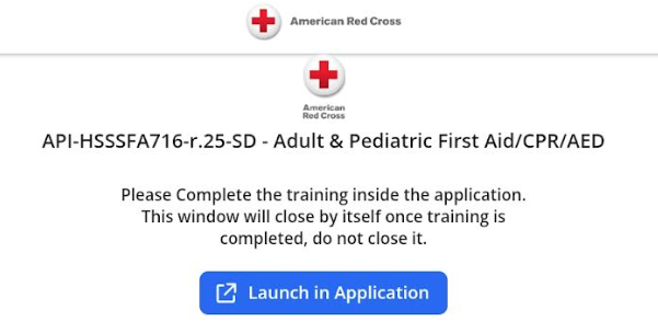
- EPress “Launch in Application” to open the app.
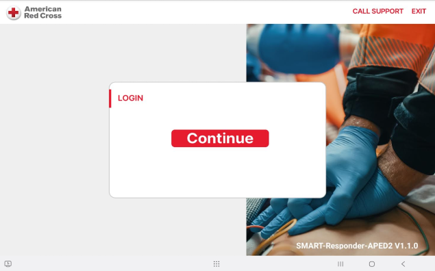
- FTap “Continue” to start your session.
Submit and confirm completion
Very important● When you see All Sessions Done and "Pass", as shown in the image below, click Submit.
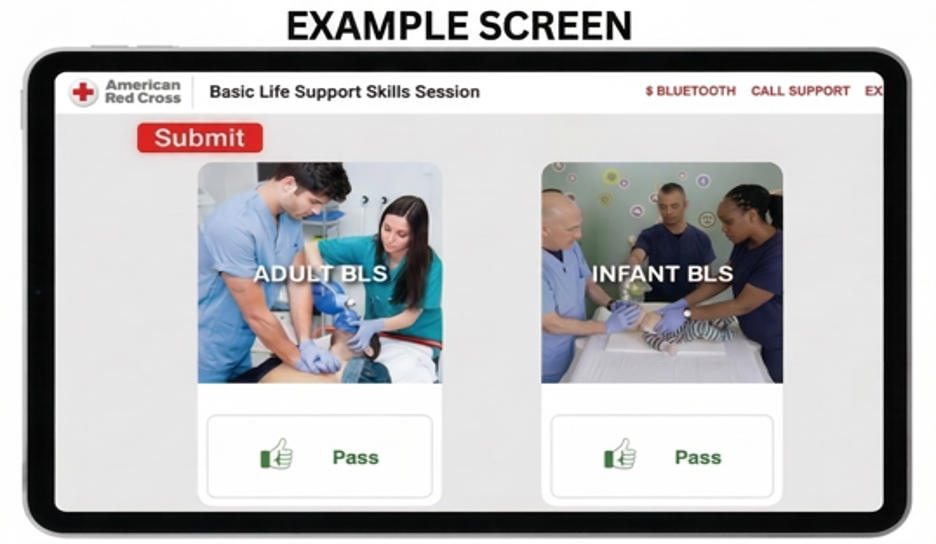
● You will be redirected to the Chrome browser. Do not click anything else or close the page. Wait until the “Completed” status is displayed. The system will then automatically log you out and return to the login page.
● If you are not automatically redirected to Chrome, manually open Chrome and refresh the course home page, press “Resume assessment”, until you see “Your course is completed.” The system should then log you out automatically. If it does not, click the Log Out button in the upper-right corner.
● Your certificate will be sent to your registered email address within 48 hours.
Completed
Your record has been submitted successfully.